

Jigsaws
Sounds
Video
Custom Shows
vba code
NaviSlides
Games for teachers
Bullets
Triggers
Security
Flash Cards
Multiple Instances
PowerPoint 2007
Mail Merge
Random events
Animation
Hyperlinks
Set spellcheck language




PowerPoint - Lines Break In Middle of Word
You open a presentation (or type in text) and weirdly the words split as in this image.
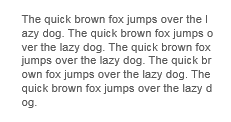
The most likely reason is that the presentation was made or altered in a country where such breaks make sense - Japan, Korea for example.
Solution 1
You need to select the textbox / shape and untick "Allow Latin text to break in the middle of a word".
The problem is this option is not available unless you install a language like Japanese and close and reopen PowerPoint.
Go to REVIEW > Language > Language Preferences and ADD Japanese. Close and reopen.
To fix you will need to select each shape and untick the box below (click the tiny arrow in Paragraphs).
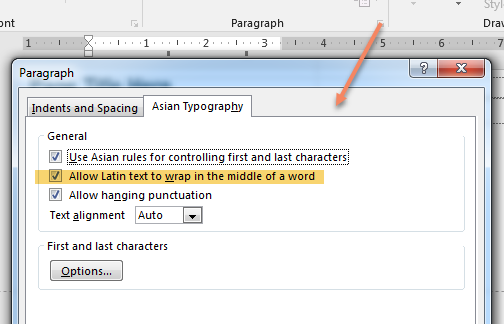
This is no great problem if there are just a few boxes but can be a major problem if you have many slides with the problem.
Gotcha 1
Every time you add a new textbox the problem is back.
If it is a placeholder go to the Master / Custom Layout and select the offending placeholder and untick.
It it is a normal text box select a FIXED box, RIGHT click the border of the box and "Set as default textbox"
Gotcha 2
You need to fix shapes individually (you can ctrl click shapes on a single slide) Not quick if you have hundreds of slides.
Fix the WHOLE Presentation
Sadly you can't do this easily.
We have an in house solution which you can download but it is entirely at your own risk. It was not designed for outside use and has a limited interface but it is quick.
Run the installer with PowerPoint closed.
MAKE a copy of the problem presentation on the desktop, DO NOT use the original as the process make permanent changes.
A new form opens click open and kill. Navigate to the presentation and it should be fixed.
Articles on your favourite sport
Free Microsoft PowerPoint Advice, help and tutorials, Template Links
This website is sponsored by Technology Trish Ltd
© Technology Trish 2007
Registered in England and Wales No.5780175
PowerPoint® is a registered trademark of the Microsoft Corporation