|
Amazing techniques which will transform your use of PowerPoint presentations. Make your presentation stand out from the crowd! |
|
|||||
How to Embed mp3 Sounds Most places will tell you that only wav files can be embedded in powerpoint in versions before 2010. All other sound formats are linked. Since mp3 files can be 10 x smaller it would be very useful if you could embed them. Linked files can cause problems . You can and here's how: The technique is to add a header to the .mp3 file that will convince PowerPoint that it is actually a wav file. Although this will change the file name to "something.wav" the file remains an mp3 file, the same size as the original and will play in PowerPoint as an mp3 file. NOTE this only seems to work with PCs not with Macs. You will need to download a free program called CDex to add the header. You can get it here CDex. With CDex use "Convert > "Add a RIFF wav header to mp2/mp3" to produce a file that will be virtually identical to the mp3 file but will have the .wav suffix and can be embedded using either of the techniques in Embedding Sound Files. The headered file should be found in the same folder as the original mps file.
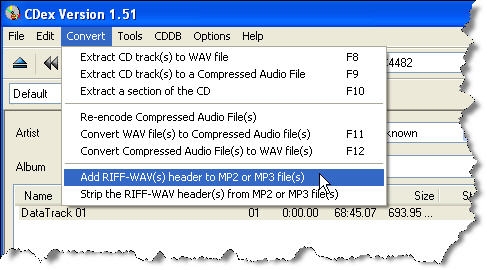
To add a header to an mp3 file so that it can be EMBEDDED in PowerPoint go to the 'CONVERT' menu and select 'Add Riff -WAV header to MP" or MP3 file(s)'
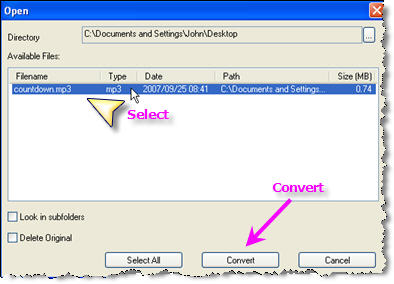
(If you are starting with a wav file and want to convert it to mp3 to reduce it's size then CDex will do this too. Choose convert > WAV files to Compressed Audio) The dialog box will change to this:
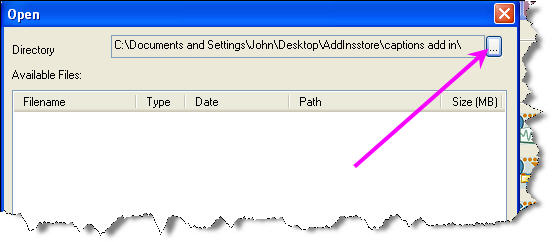
Use the 'Browse' button to browse to the file or files you want to convert. Make sure that the files you need to convert are selected and then hit convert. The converted files will be in the same folder as the original and will have a .wav suffix. NOTE though they are still mp3 files!
Rather watch a demonstration? Click here! REALLY, REALLY stuck and need it embedded urgently? We have a service to take your mp3 and create an embeddable file. If you send the PowerPoint we'll even embed it! All from $15 a go!! Email here. If your file is large use www.yousendit.com to send the file to info@technologytrish.co.uk. Many people speak of RIFF wav files as a special type of wav file. This is not the case RIFF stands for "Resource Interchange File Format" and applies to all wav files . You have not converted the mp3 to a RIFF wav merely convinced PowerPoint that the mp3 IS a normal wav file. RIFF wav has however slipped into technically incorrect common usage to mean an mp3 file with a wav header. New AddIns
|
|
||||
This website is sponsored by Technology Trish Ltd |
|||||
 !
!